Gating
Change the gating settings of your BactoBox®
Advanced feature 🧩
This is an advanced feature. We only support advanced features through a custom solution. Contact SBT for details.
You have multiple options on this page:
Upload a CRS file to your BactoBox®
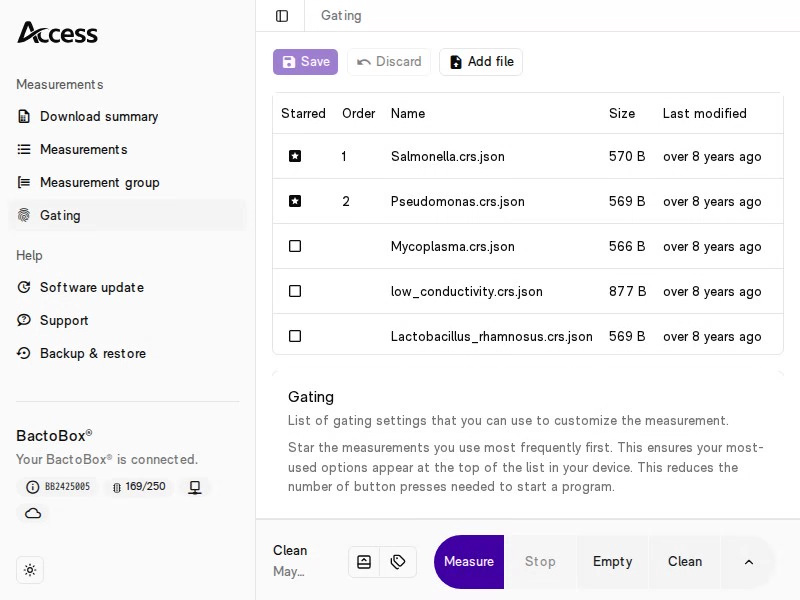
Star the CRS files in a specific order to change what happens when you press Measure.
Download a CRS file from your BactoBox®
Delete a CRS file from your BactoBox®
Choose CRS file for the Measure program
Both the Access and Dash user interfaces allow you to select a specific CRS file before Measure starts.
Choose CRS file in Access
In the Access user interface, press the Measure button. A dialog appears. Choose one of the CRS files in the Select gating list.
Choose CRS file in Dash
In the Dash user interface, hold Measure for a couple of seconds. A menu appears. Select Measure with custom gating. Choose one of the CRS files in the list.
Upload a CRS file to your BactoBox®
Drag and drop the CRS file from your computer into the table on the Gating page. This immediately starts the file upload.

Star CRS files on your BactoBox®
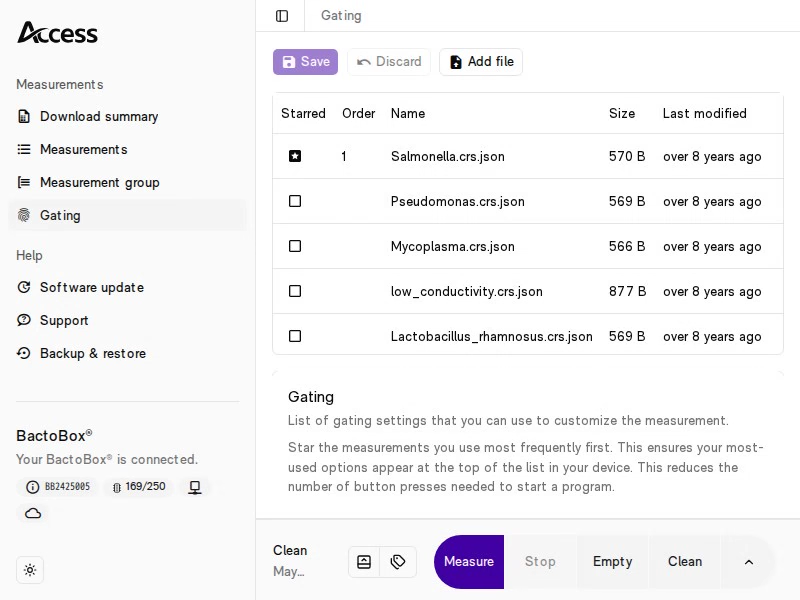
You can star zero or more CRS files. The number of starred CRS files changes what happens when you press Measure on your BactoBox®.
0
The Measure program starts immediately.
BactoBox® uses the system default CRS file. Usually, this is BacTotal-v2024-10.crs.json.
1
The Measure program starts immediately. BactoBox® uses the starred CRS file.
2 or more
A Starred programs menu appears. BactoBox® prompts you to select a CRS file before the Measure program starts.
Star order
The order in which you star the CRS files matter. This order determines how BactoBox® presents the CRS files in the Starred programs menu. The number next to the Starred column is the current star order. No. 1 goes in the top of the list, no. 2 goes second, and so on.

Single star

Zero stars

Download a CRS file from your BactoBox®
Press the link in the Name column to download the corresponding CRS file. In Microsoft Edge, the download begins immediately (see quick clip below). Other browsers may open a Save file as dialog.

Remove CRS files from your BactoBox®
Press the garbage bin icon for each CRS file that you want to remove. Then, click the Save button.
Your BactoBox® comes with several built-in CRS files. E.g., BacTotal_v2024-10.crs.json and Salmonella.crs.json. It's not possible to remove these CRS files.

Gating FAQ
How do I create or edit a CRS file?
Contact us for more information.
Last updated
Was this helpful?