> For the complete documentation index, see [llms.txt](https://help.sbtinstruments.com/llms.txt). Markdown versions of documentation pages are available by appending `.md` to page URLs; this page is available as [Markdown](https://help.sbtinstruments.com/troubleshooting/contact-support.md).
# Contact support
Create a support case in Access, with a device data bundle.
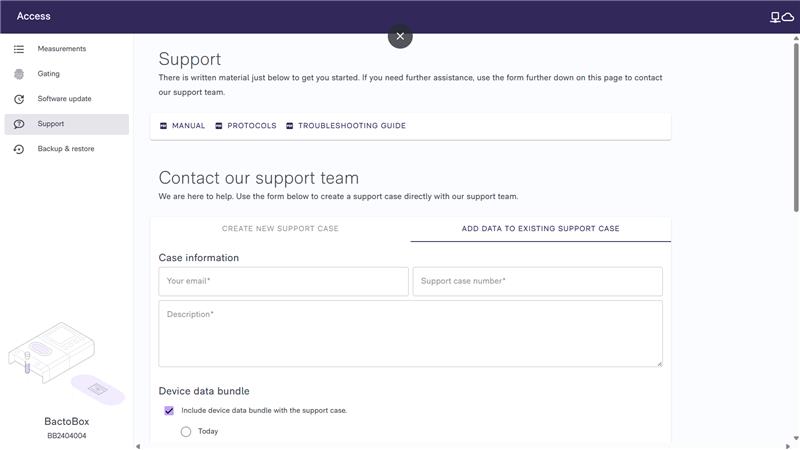
The fastest way to get help is a support case from Access. It can include a device data bundle, so we see what your BactoBox® saw.
## Before you contact us
* Note the error code or message.
* Run a QC test if you can, and note if it passes. This tells us whether to look at your BactoBox® or at the sample.
## Create a support case
{% hint style="info" %}
Curious about what a device data bundle reveals? See [what data is shared with SBT](/software/miscellaneous/what-data-is-shared-with-sbt.md).
{% endhint %}
{% stepper %}
{% step %}
#### Connect to Access
Follow [Connect to Access](/more/software/connect-to-access.md).
{% endstep %}
{% step %}
#### Open the *Support* page
Click *Support* in the side bar of Access.
{% endstep %}
{% step %}
#### Fill in the form
Describe what happened. Include the error code, and whether the QC test passes. Check the option *Include device data bundle with the support case*, then submit.
{% endstep %}
{% step %}
#### Verify the support case
After a couple of minutes, you get an e-mail from *Nucleo*, SBT's cloud service. Click the link in it to verify the support case.
{% endstep %}
{% step %}
#### That is it!
We reply once we have processed your support case.
{% endstep %}
{% endstepper %}
## Add data to an existing support case
Follow the same steps. On the *Support* page, select *Add data to existing support case*. The support case number has 8 digits, including leading zeros.
## Cannot reach Access? E-mail us
Write to . Include:
* your BactoBox® ID, for example bb2241039. Find it under *System info*, *Network* in the [menu](/software/dash/menu-system.md#system-info).
* the error code or message, and a photo of the screen
* what you did when it happened, and what you tried
* whether the QC test passes
If you see damage, tell us and send photos. For example, liquid in the flow cell compartment, corrosion, a loose inlet or outlet, or parts that rattle.
{% hint style="info" %}
### Asked for a device data bundle?
See [Download device data bundle](/troubleshooting/contact-support/download-device-data-bundle.md).
{% endhint %}
---
# Agent Instructions
This documentation is published with GitBook. GitBook is the documentation platform designed so that both humans and AI agents can read, navigate, and reason over technical content effectively. Learn more at gitbook.com.
## Querying This Documentation
If you need additional information that is not directly available in this page, you can query the documentation by asking a question.
Perform an HTTP GET request on the following URL with the `ask` and `goal` query parameters:
```
GET https://help.sbtinstruments.com/troubleshooting/contact-support.md?ask=&goal=
```
`ask` is the immediate question: it should be specific, self-contained, and written in natural language.
`goal` is what the user is ultimately trying to achieve, the reason they need the answer. Sharing it helps GitBook give you a better, more relevant answer. A goal is most helpful when it describes the outcome the user wants rather than restating the question. For example, with `ask=how do I create an API token`, a goal like `automate deployments from our CI pipeline` lets GitBook tailor the answer to that use case.
The response will contain a direct answer to the question and relevant excerpts and sources from the documentation.
Use this mechanism when the answer is not explicitly present in the current page, you need clarification or additional context, or you want to retrieve related documentation sections.